
In today’s fast-evolving landscape, understanding Boost Workflow These is essential. Integrating specific Windows 11 features into your daily routine significantly improves efficiency by streamlining data management and system maintenance. These three often-overlooked tools allow you to manage complex tasks with minimal friction, ensuring your device remains organized and responsive during intensive work sessions.
Boost Workflow These: Which Windows 11 features improve daily workflow?
Clipboard History, Windows Terminal, and NTFS junctions optimize your digital environment by providing deeper command-line control and advanced file management capabilities. Because traditional graphical interfaces often lack these granular options, leveraging built-in utilities helps users reduce repetitive labor. You can also reclaim storage space without compromising the stability of your installed applications, as noted by MakeUseOf.
- Clipboard History: Activated via Windows + V, this allows you to access up to 25 previous clippings, pin frequently used items, and sync data across devices.
- Windows Terminal: Provides a centralized hub to manage and uninstall applications using the winget command-line tool, bypassing slow, manual settings menus MakeUseOf.
- NTFS Junctions: Enables moving large data folders to secondary drives while tricking applications into believing the files remain in their original location.
How do these Windows 11 features compare to other tools?
Users often face a choice between simple file organization and complex system-level maintenance. While Clipboard History acts as a passive tool, NTFS junctions and Windows Terminal represent active management. Furthermore, understanding hardware efficiency can guide your upgrade choices, much like finding value in older hardware such as this seven-year-old GPU compared to a Steam Deck. The table below compares the functional focus of these options:
| Feature | Primary Use Case | Technical Complexity |
|---|---|---|
| Clipboard History | Text and media management | Low |
| Windows Terminal | Bulk application removal | Medium |
| NTFS Junctions | Storage space optimization | High |
What precautions are needed for Windows 11 features?
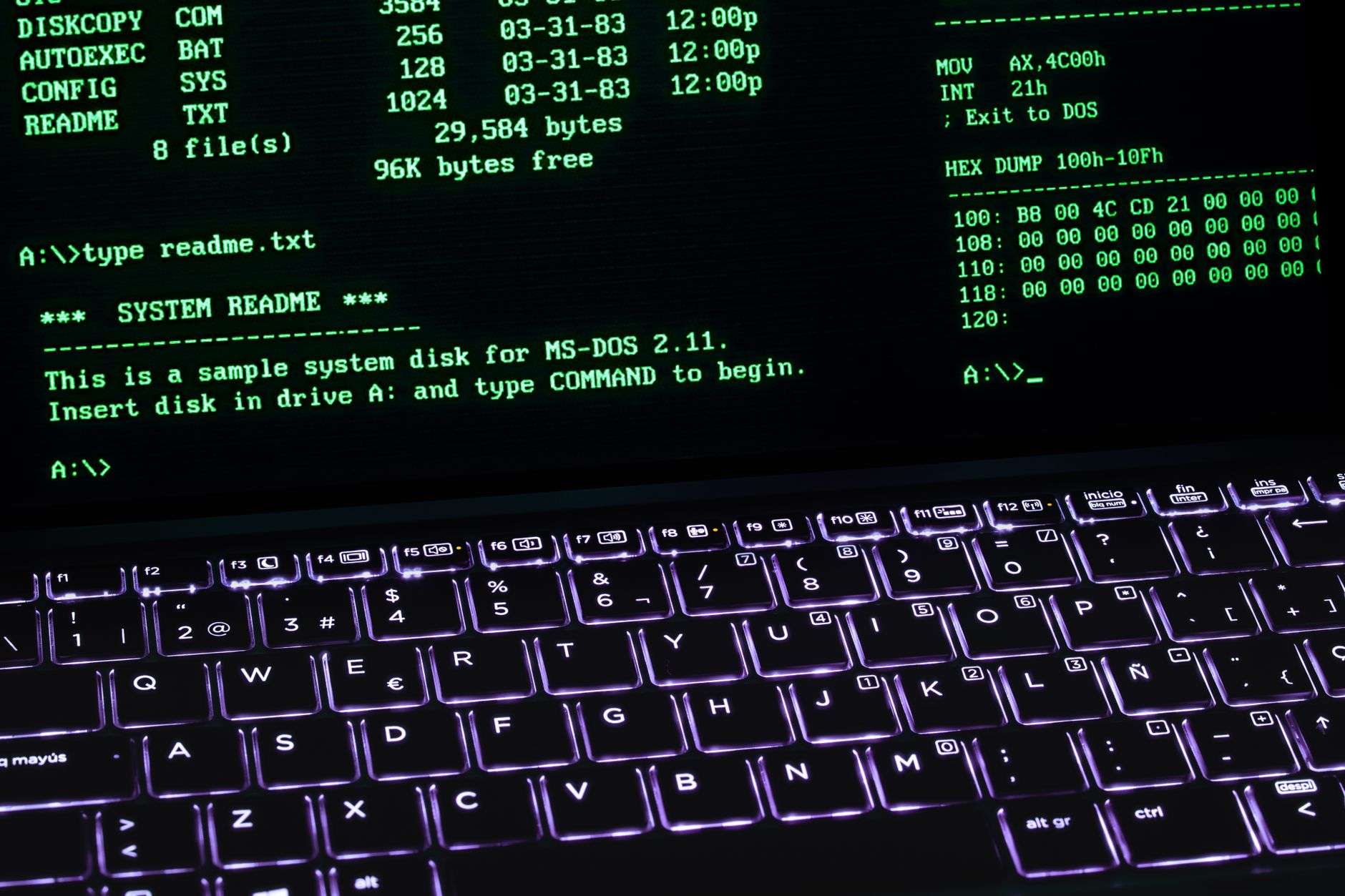
You must exercise caution when utilizing advanced command-line tools to ensure system integrity is not compromised during maintenance tasks. For instance, using NTFS junctions on core Windows system folders is discouraged because it can disrupt critical operating system operations. Always maintain backups of your data before migrating files or removing applications via the terminal, as incorrect paths or accidental deletions may be difficult to reverse MakeUseOf. Note that both drives involved in a junction must be formatted with the NTFS file system for the link to function correctly.
Frequently asked questions about Windows 11 features
What is the benefit of Windows Terminal?
Windows Terminal acts as a command-line interface that allows you to manage software efficiently. It is particularly effective for mass-uninstalling applications using the winget command, which saves time compared to navigating the standard graphical settings menu for each individual program.
Are NTFS junctions safe for games?
NTFS junctions are generally safe for large game folders and applications. By creating a bridge to a secondary drive, you free up space on your primary solid-state drive while ensuring the application continues to function seamlessly, as it remains unaware that its files have been moved.
Can Clipboard History sync across devices?
Yes, Clipboard History can sync across different devices if you are signed into the same Microsoft account. This integration extends to supported devices, allowing you to access text, symbols, and copied items across your entire ecosystem, which significantly reduces the need for manual file transfers.
How do these options compare to other productivity tweaks?
While operating system utilities manage internal files, external automation methods like using NFC tags at home or streamlining digital workflows can further reduce friction in your daily routine. Exploring diverse optimization techniques ensures a fully cohesive tech setup.
How do I automate routine backups?
Users looking to expand their productivity further can benefit from automating Google workspace backups to protect important files without manual intervention. Combining cloud backups with local junction links creates a robust data management strategy.
What impact will this Software & Development development have over the next 12 months?
Reader poll (non-scientific). Share your perspective below or join the discussion in the comments.