In today’s fast-evolving landscape, understanding Timed Every Way is essential. The fastest file transfer method for moving files off your phone is a simple question that many Android users ask when dealing with large videos or photo libraries. In our hands‑on tests, a high‑quality USB‑C to USB‑A cable consistently outperformed every wireless alternative, completing a 3.01 GB video in just two minutes. Below we break down the results, explain why the cable wins, and show how third‑party apps like LocalSend can still offer a respectable wireless experience.
Timed Every Way: What is the fastest way to move files off your phone?
The answer is a direct wired connection using the Media Transfer Protocol (MTP) over a USB‑C cable that supports USB 3.0 speeds. Because the data travels over a physical conductor, latency is minimal and the transfer rate can approach the theoretical limit of the port, which is why we recorded a two‑minute transfer for a 3.01 GB video. However, the cable must be genuine and the USB port on the computer must be rated for high‑speed operation. For example, cheap cables often fall back to USB 2.0 and double the transfer time.
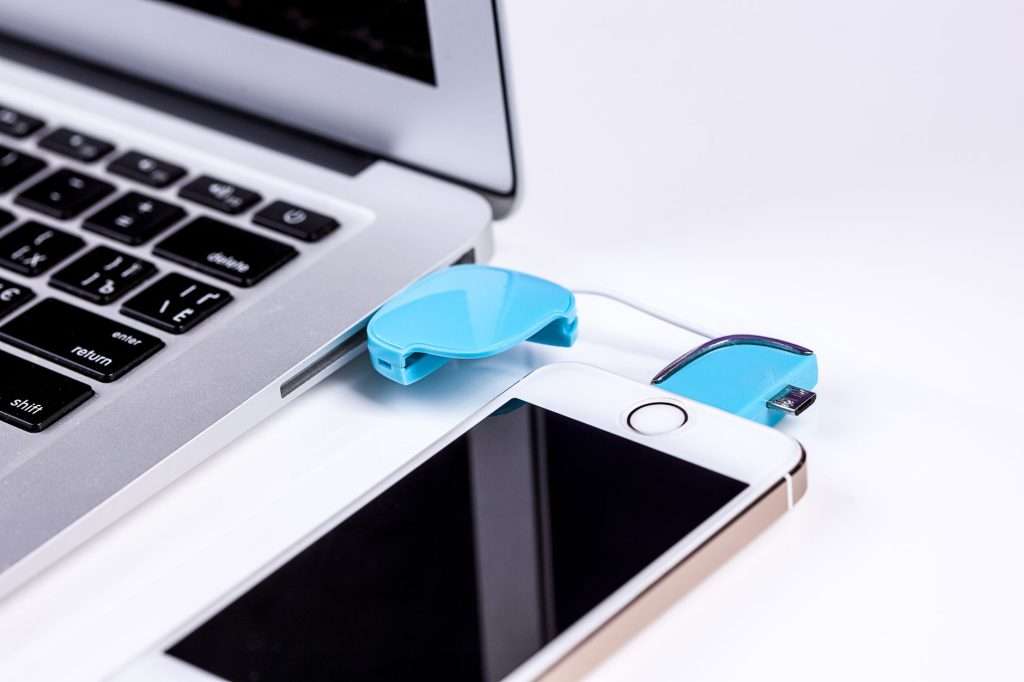
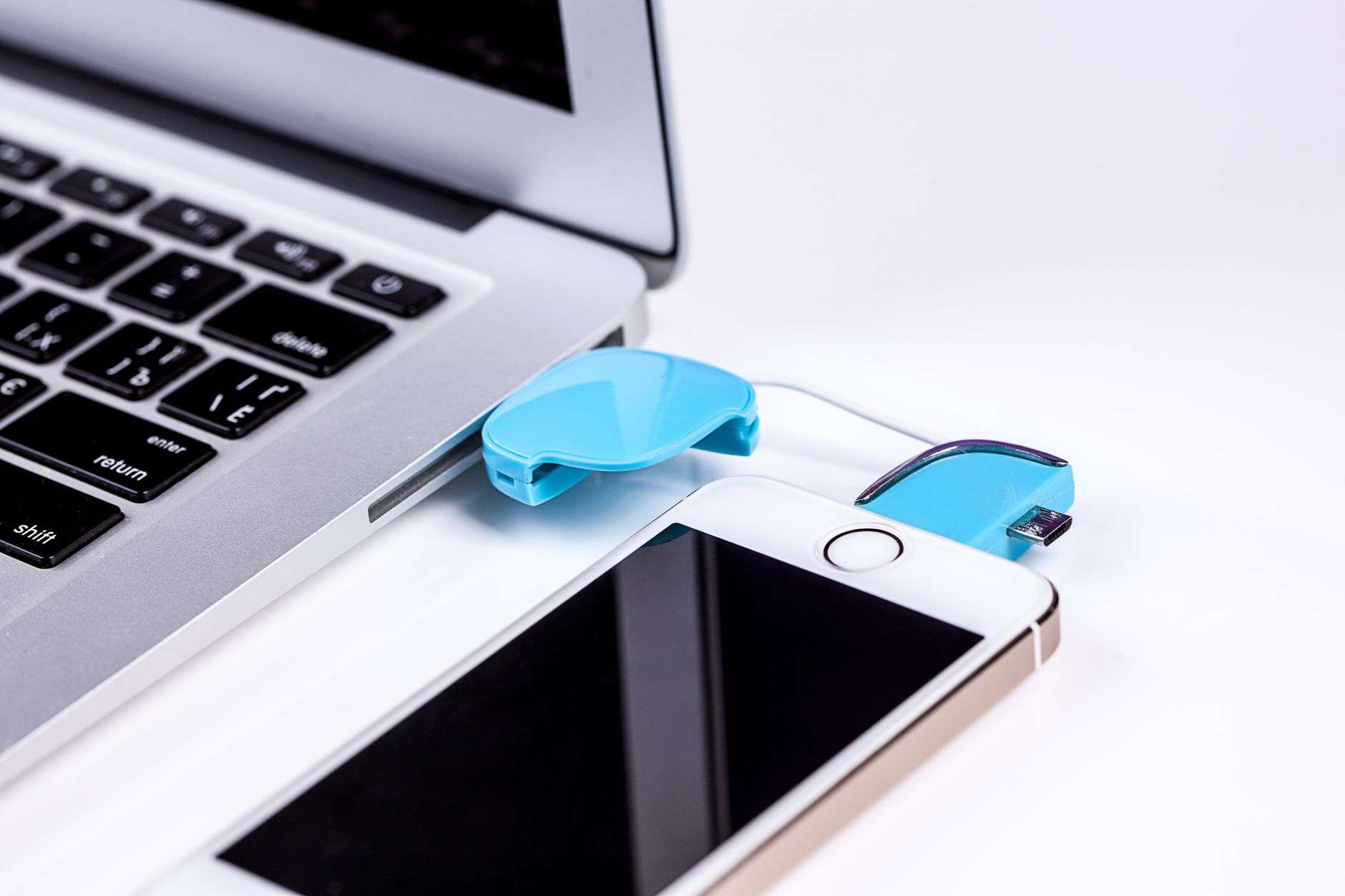
If you need a reliable cable without breaking the bank, check out this $25 USB dongle that lets you listen to aircraft and satellites while still delivering fast data rates. First, plug the dongle into a USB‑C port, then enable MTP on your Android device. Finally, drag the files in Windows File Explorer for an instant, stable transfer.
How does the fastest file transfer via USB compare to wireless apps?
In our benchmark, the USB cable completed the 3.01 GB video in 2:00, while the best‑performing wireless app, LocalSend, took 3:44. Therefore, the wired method is roughly 45% faster. Also, USB transfers are less prone to interference from other devices on the Wi‑Fi network, which can cause unpredictable slowdowns.
LocalSend shines when you cannot use a cable—such as when the phone is charging on a wall outlet far from the computer. The app creates a direct peer‑to‑peer link over the local network, bypassing cloud servers entirely. Nevertheless, the Wi‑Fi channel must be clear; otherwise, you may see the transfer time creep toward 5 minutes. For more details on Wi‑Fi performance, see the Wikipedia article on Wi‑Fi.
Can wireless tools ever match a wired connection?
Wireless tools can approach wired speeds only under ideal conditions: a 5 GHz network, a modern router with MU‑MIMO, and a phone that supports Wi‑Fi 6. In practice, however, most home networks still operate on 2.4 GHz, which limits throughput to about 150 Mbps—far below the 500 Mbps+ that USB 3.0 can sustain.
That said, some users prioritize convenience over raw speed. If you regularly move small files or need to transfer on the go, an app like LocalSend or Google Quick Share may be more practical. For a deeper look at Android’s native sharing utilities, read Using Android Auto at Your Desk for Productivity, which discusses integration with desktop environments.
| Transfer Method | Average Time (3.01GB Video) |
|---|---|
| USB Cable (MTP) | 2 minutes, 0 seconds |
| LocalSend App | 3 minutes, 44 seconds |
| Google Quick Share | 4 minutes, 13 seconds |
| WiFi FTP Server | 8 minutes, 33 seconds |
Frequently asked questions
Is the fastest file transfer always a USB cable?
In most cases, yes—especially for large files—because a wired connection eliminates the latency and bandwidth caps that affect Wi‑Fi.
Does the fastest file transfer work on all Android phones?
Only phones with USB‑C ports that support USB 3.0 or higher can achieve the benchmark speeds we measured; older devices may fall back to slower USB 2.0 rates.
Do wireless transfer apps require an internet connection?
No. Apps like LocalSend create a direct local‑network link, so your data never leaves the home router or uses cellular data.
Why might a USB transfer fail even with a good cable?
Common issues include a mismatched driver on the PC, a disabled MTP mode on the phone, or a faulty USB port that defaults to low‑speed mode.
Can I improve Wi‑Fi transfer speeds without buying new hardware?
Yes—by moving the devices closer to the router, selecting the 5 GHz band, and reducing simultaneous network traffic during the transfer.
Where can I find more detailed technical specifications?
For official USB standards, visit the Wikipedia page on USB, and for Android’s file‑sharing APIs, see the Android developer documentation.
What impact will this Guides & Explainers development have over the next 12 months?
Reader poll (non-scientific). Share your perspective below or join the discussion in the comments.