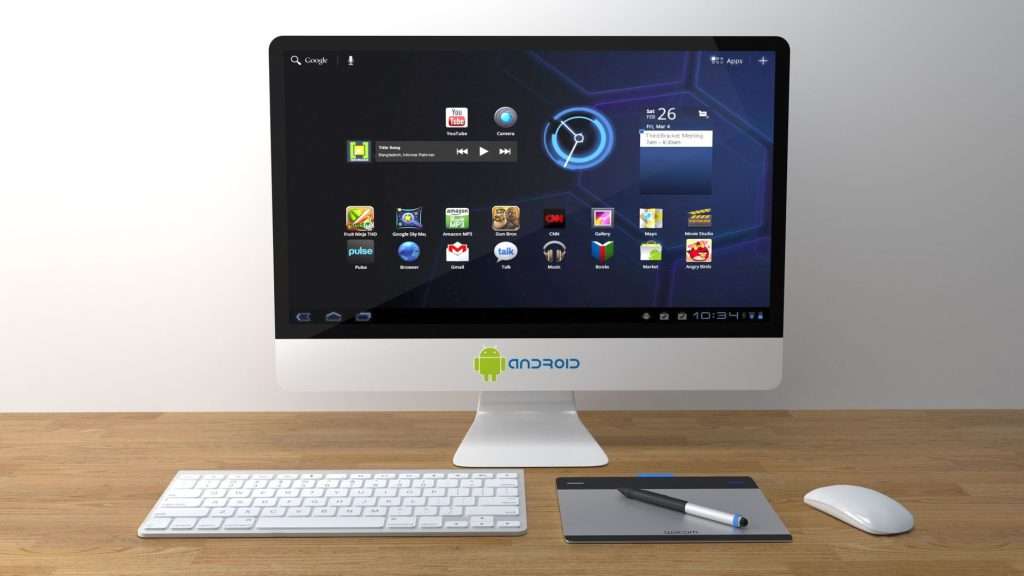
In today’s fast-evolving landscape, understanding Using Android Auto is essential. Android Auto productivity turns a spare Android device into a focused desktop interface.
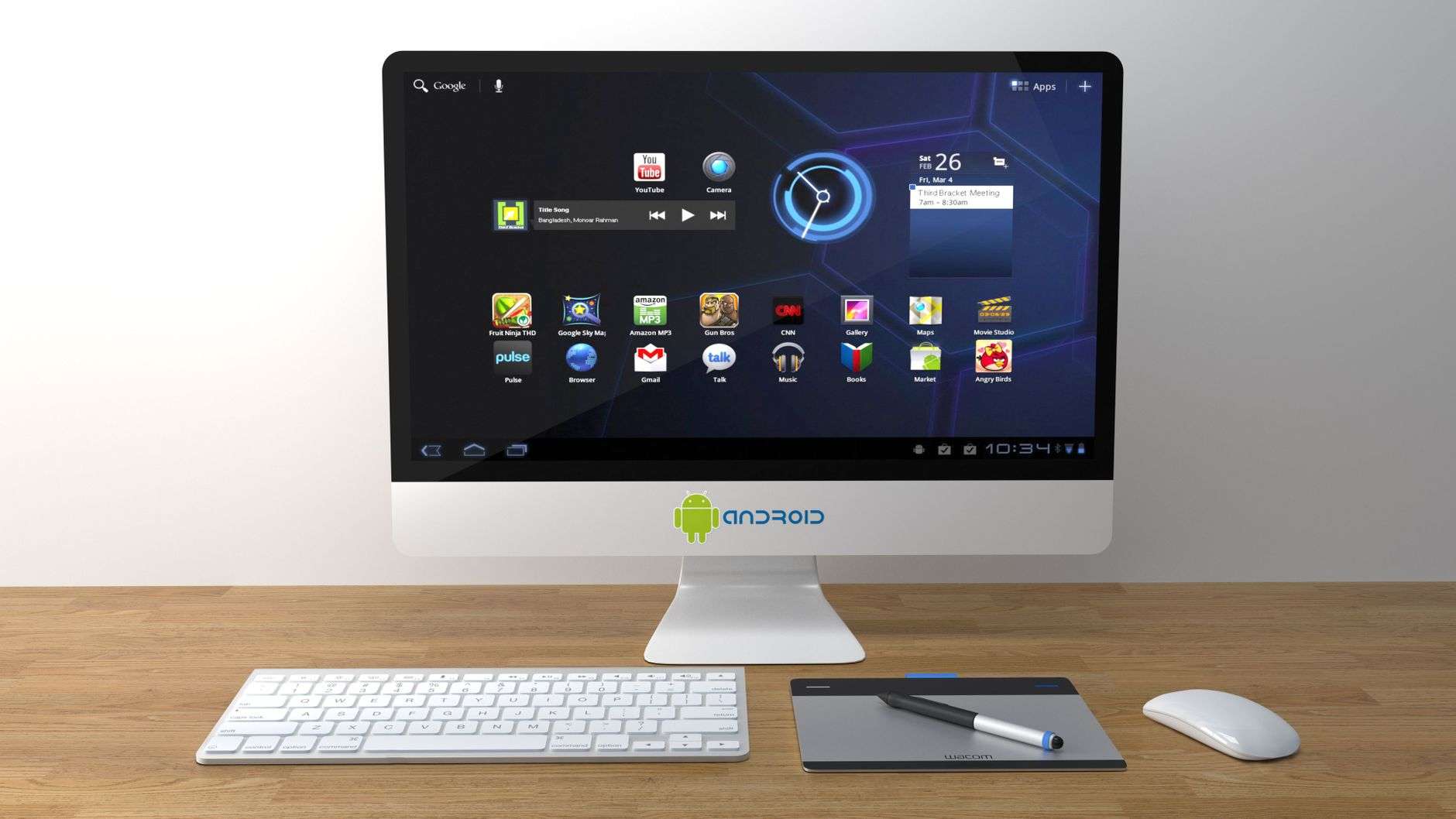
It keeps essential tools at hand and eliminates constant phone checks.
By locking the screen to messaging, calendar, music, and smart‑home controls, the setup reduces the urge to open social media or video apps. For a quick overview, see the Android Auto page on Wikipedia.
Using Android Auto: How does Android Auto productivity work as a desktop tool?
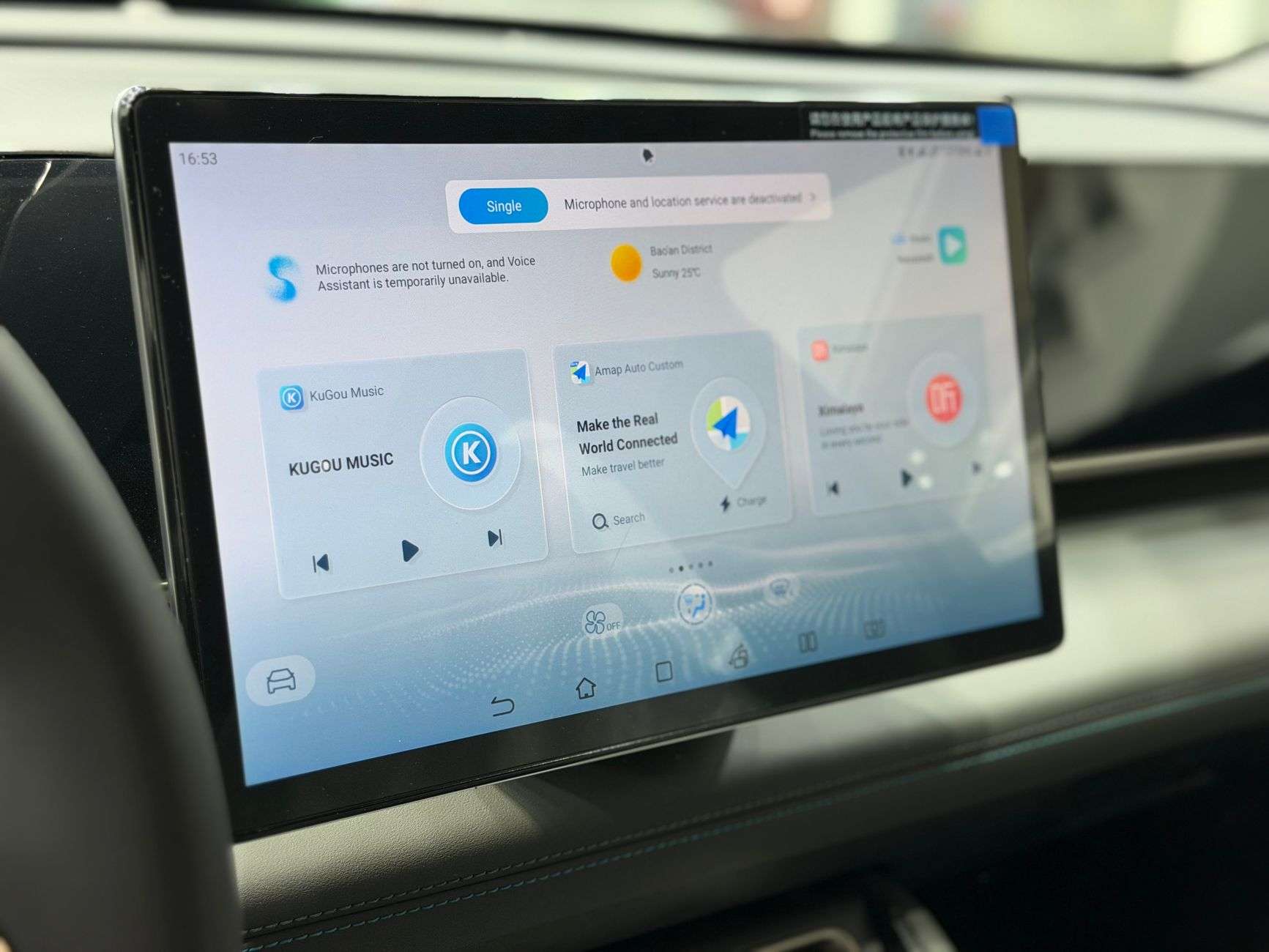
The Android Auto dashboard expands to fill a monitor or TV, presenting only utility apps. Voice commands let you reply to messages without touching the screen. Calendar alerts appear as banners, so you never miss meetings. Music controls stay visible, letting you switch tracks with a tap.
What hardware and software are required to set up Android Auto productivity?
You need an Android phone (or tablet) running Android 9 or later, a HDMI or USB‑C to HDMI adapter, and a spare monitor. Install the Open Headunit app, which offers a “Self‑Mode” that tricks Android Auto into thinking it is connected to a car head unit. After installing, open Android Auto, tap the version number ten times to enable developer options, then select the head‑unit server from the three‑dot menu.
The app is free on GitHub, while the Play Store version costs about $4. For step‑by‑step guidance, read our guide on how AutoWear lets your Galaxy Watch control your phone. If you struggle with habit loops, the article breaking the loop of digital habits offers useful tips.
What are the benefits for focus and ergonomics?
How does Android Auto productivity reduce distractions?
The interface hides the Play Store and blocks access to Instagram, TikTok, and YouTube. Because only essential apps appear, you spend less time scrolling and more time completing tasks. Transition words such as “therefore” and “however” guide you through each step, keeping the workflow smooth.
Can it improve desk ergonomics?
Using a larger screen reduces neck strain compared with constantly looking at a phone. The oversized UI lets you place the monitor at eye level, which aligns with ergonomic best practices. For more ergonomic ideas, check our piece on ergonomic workspace design.
What limitations and power considerations should you expect?
Android Auto’s map widget stays visible and cannot be hidden, which consumes part of the screen. Location services remain active, increasing battery drain. Therefore, connect the device to a power source or use a low‑power charger. Some users report occasional crashes after Android updates, because the Open Headunit workaround relies on undocumented APIs.
In addition, the always‑on display uses high brightness, which may affect eye comfort over long periods. Adjust the screen timeout and dim the UI when possible.
What best practices keep Android Auto productivity running smoothly?
To keep the setup reliable, follow a few simple habits each day. First, check that the device stays plugged in before you start work. Second, clear the cache of the Open Headunit app weekly; this prevents memory leaks that can cause freezes. Third, disable auto‑brightness and set a moderate level to reduce eye strain. Finally, review Android Auto permissions monthly to ensure no new apps have gained access. These steps add only a few minutes but dramatically improve uptime.
If you need an external audio source, the USB dongle for aircraft and satellites works well with Android Auto.
Frequently asked questions
Can I use Android Auto productivity on a tablet?
Yes, a spare tablet works well. The larger screen makes navigation easier while keeping your primary phone free for calls.
Does Android Auto productivity allow social media access?
No. The mode intentionally blocks Instagram, TikTok, YouTube, and similar platforms to keep your desk focused.
Is the Open Headunit app completely free?
The GitHub version is free. The Play Store version costs a one‑time fee of about $4, but both provide the same core functionality.
Will future Android updates break this setup?
Updates may affect the head‑unit server because Google does not officially support desktop use. Stay tuned to community forums for patches.
Do I need a separate power source?
Yes. Running location services and an always‑on display drains the battery quickly, so a charger or power bank is recommended.
What impact will this Android & Google development have over the next 12 months?
Reader poll (non-scientific). Share your perspective below or join the discussion in the comments.