
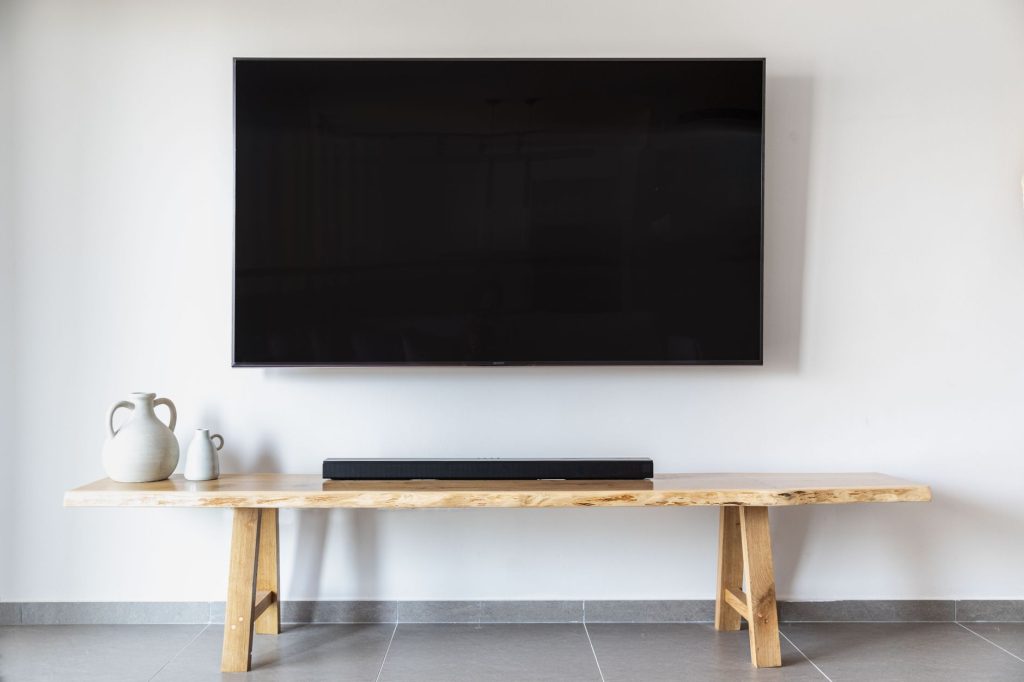
Finding the right av sync settings can completely transform your home entertainment experience. One of the most frustrating moments while watching TV happens when the audio falls out of sync with the video. You might notice characters talking while their mouth movements do not match the spoken dialogue. Alternatively, you might hear a sports announcer call a touchdown before you actually see the play happen on your screen. This lag is a common issue with external soundbars connected to modern smart TVs. Fortunately, understanding why this happens makes it much easier to fix. Therefore, you can often resolve these annoying delays by simply adjusting your equipment configuration. Modween audio guides offer additional help for home setups. Meanwhile, industry reports from Rtings audio testing show that signal processing is a frequent culprit behind this frustrating lag.
Understanding AV Sync Settings for Your Soundbar
Audio delay usually occurs because of extra processing time required by your hardware components. When you use only built-in TV speakers, the television processes video and audio simultaneously. However, introducing a soundbar adds another layer of audio decoding into the signal chain. If your TV and soundbar decoding processes do not match, a noticeable time gap appears. Additionally, poor physical connections can make this lag significantly worse over time. For example, a loose digital optical cable or a damaged HDMI cable can disrupt signal transmission. Therefore, you should always inspect your physical cables before tweaking software configurations. Modween connection guides provide great advice for securing hardware cables. Furthermore, checking your wiring ensures stable data transfer between all connected home theater devices.
How to Adjust AV Sync Settings on Popular Brands
Different speaker brands provide unique menus and buttons for managing your audio delay. For instance, Samsung soundbars feature a dedicated Sound Control button on the included remote. You can also use the Audio Sync feature to manually align dialogue with video. Similarly, LG devices include built-in tools to help you resync audio tracks effortlessly. If you own a Sonos soundbar, you can easily open the mobile control application. From there, navigate to system settings and adjust the television dialog slider. As a result, you can fine-tune the playback until the voices match the picture perfectly. Meanwhile, checking manufacturer documentation helps you locate these specific configuration menus quickly.
Advanced Fixes Using AV Sync Settings
Sometimes, basic remote adjustments are not enough to eliminate stubborn lip-sync errors completely. In these situations, direct routing offers a very reliable alternative method. You can plug your streaming device or cable box directly into the soundbar input. Then, connect another cable from the soundbar output straight to your television set. This clever routing method allows audio signals to skip the television processing entirely. Consequently, you eliminate the decoding delay that causes annoying out-of-sync dialogue. Furthermore, disabling unnecessary picture processing features on your television can also improve performance. Features like motion smoothing, digital noise reduction, and cinematic modes demand extra processing power. Turning those advanced visual enhancements off reduces overall system latency significantly.
Optimizing Audio Formats and Firmware Updates
Hardware limitations can also trigger frustrating audio delays during movie playback sessions. Older HDMI ARC connections often lack the necessary bandwidth for uncompressed surround sound formats. Therefore, upgrading to modern eARC ports and ultra-high-speed cables solves bandwidth bottlenecks. Alternatively, you can change your audio output format to PCM if hardware upgrades are unavailable. However, switching to PCM might disable your advanced multi-channel surround sound configurations. Additionally, you should always keep your television and soundbar firmware updated. Manufacturers frequently release software patches that resolve annoying synchronization bugs and stability issues. 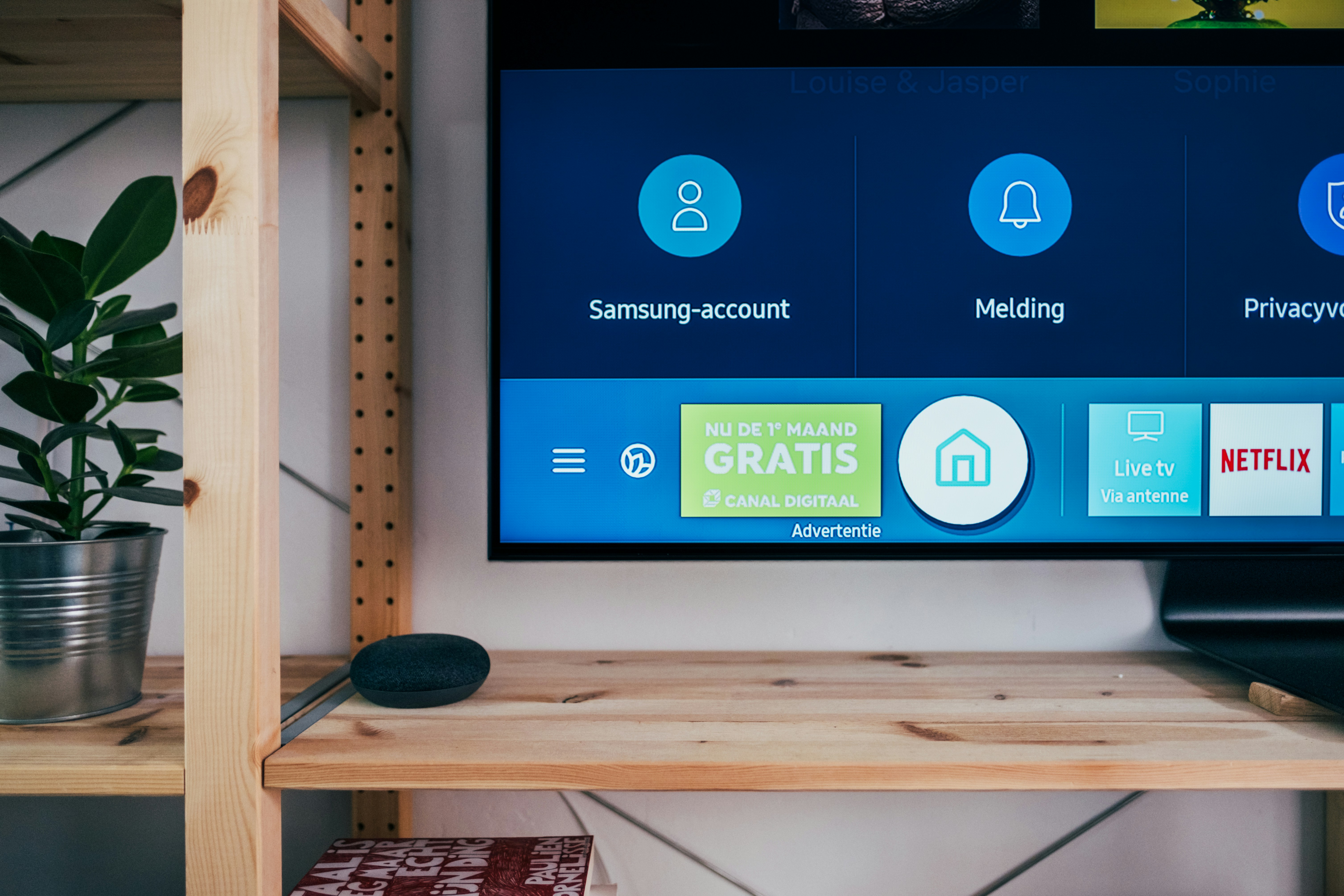
What impact will this Hardware & Gadgets development have over the next 12 months?
Reader poll (non-scientific). Share your perspective below or join the discussion in the comments.